
Enterprise Data Custody
Configure Nametag to store data in your own AWS S3 buckets or Azure Blob Storage containers.
Introduction
Use Enterprise Data Custody to store data in your own cloud storage service. You can specify AWS S3 buckets or Azure Blob Storage containers that Nametag will use to store data on your behalf. This guide walks through creating S3 buckets in your AWS account and a role that authorizes Nametag to access them.
Note: Enterprise data custody is managed on a per-environment basis. If you have multiple environments, you must configure each environment separately.
After you have enabled this feature, all new data collected will be stored in your bucket, but existing data will not be migrated.
AWS S3
1. Create S3 buckets
You must create S3 buckets in your account for each Nametag region. The Nametag regions are:
| AWS Region | Nametag Region |
|---|---|
us-east-2 |
us |
eu-west-1 |
eu |
ap-south-1 |
in |
Example: Create the buckets with the AWS CLI
aws s3api create-bucket \
	--region us-east-2 \
	--bucket "*BUCKET_US*" \
	--create-bucket-configuration "LocationConstraint=us-east-2" \
	--acl private
aws s3api create-bucket \
	--region eu-west-1 \
	--bucket "*BUCKET_EU*" \
	--create-bucket-configuration "LocationConstraint=eu-west-1" \
	--acl private
aws s3api create-bucket \
	--region ap-south-1 \
	--bucket "*BUCKET_IN*" \
	--create-bucket-configuration "LocationConstraint=ap-south-1" \
	--acl private
Note: You may wish to apply your organization’s logging, encryption and other access policies to these buckets. Applying those configurations is beyond the scope of this guide.
Note: Even if you do not intend to use Nametag in a particular region, you must create buckets in all the regions listed.
2. Create a cross-account role
Next, create a cross-account role that authorizes our AWS account limited access to your
AWS account. Our AWS account ID is 464164016791. To improve security, you should
restrict access to the role to only sessions where the External ID matches what we
specify. Nametag sets an external ID of the form nametag-storage-*ENV* when
assuming the role you specify.
You can find your *ENV* in the Nametag console under
Configuration > OAuth > Client ID. (The *ENV* and OAuth 2.0 client ID are the same thing).
Note: Your role must be called NametagStorage because the AWS IAM policies in
the Nametag AWS account only allow our service to invoke sts:AssumeRole on roles named
NametagStorage.
Example: Create a cross account role with the AWS CLI
aws iam create-role \
	--role-name NametagStorage \
	--assume-role-policy-document '{
            "Version": "2012-10-17",
            "Statement": [
                {
                    "Effect": "Allow",
                    "Principal": {
                        "AWS": "arn:aws:iam::464164016791:root"
                    },
                    "Action": "sts:AssumeRole",
                    "Condition": {
                        "StringEquals": {
                            "sts:ExternalId": "nametag-storage-*ENV*"
                        }
                    }
                }
            ]
        }'
3. Specify permissions for the cross account role
Next we will attach a policy that authorizes the role you created, and thus Nametag to access your buckets. The following policies must be specified:
s3:PutObjectands3:PutObjectAclto write data to the buckets.s3:GetObjectto read data from the buckets.s3:DeleteObjectto delete data from the buckets.s3:ListBucketto confirm basic information about the bucket.s3:GetBucketLocationto confirm the region of the bucket.
Example: Attaching a policy to the cross account role with the AWS CLI
aws iam put-role-policy \
	--role-name NametagStorage \
	--policy-name StorageAccess \
	--policy-document '{
  "Version": "2012-10-17",
  "Statement": [
    {
      "Sid": "ReadWrite",
      "Action": [
        "s3:PutObject",
        "s3:PutObjectAcl",
        "s3:GetObject",
        "s3:DeleteObject"
      ],
      "Effect": "Allow",
      "Resource": [
      	"arn:aws:s3:::*BUCKET_US*/*",
      	"arn:aws:s3:::*BUCKET_EU*/*",
      	"arn:aws:s3:::*BUCKET_IN*/*"
      ]
    },
    {
      "Sid": "Bucket",
      "Action": [
        "s3:ListBucket",
        "s3:GetBucketLocation"
      ],
      "Effect": "Allow",
      "Resource": [
      	"arn:aws:s3:::*BUCKET_US*",
      	"arn:aws:s3:::*BUCKET_EU*",
      	"arn:aws:s3:::*BUCKET_IN*"
      ]
    }
  ]
}'
4. Configure Nametag to use the buckets
The final step is to configure Nametag to use the buckets using the Nametag API. If you don’t have an API key, you can generate one from the Nametag console under Configure > API keys. It must have the Admin role
Example: Configure Nametag via the API
curl -u ":*API_KEY*" -X PATCH https://nametag.co/api/envs/*ENV* -d '{
  "storage": {
		"s3_bucket_us": "*BUCKET_US*",
		"s3_bucket_eu": "*BUCKET_EU*",
		"s3_bucket_in": "*BUCKET_IN*",
		"aws_role_arn": "arn:aws:iam::*AWS_ACCOUNT_ID*:role/NametagStorage"
	}
}'
To disable enterprise data custody, set the storage field to an empty object:
Example: Disable enterprise data custody via the API
curl -u ":*API_KEY*" -X PATCH https://nametag.co/api/envs/*ENV* -d '{
  "storage": {}
}'
Custom Managed Keys support
Nametag Enterprise Data Custody supports Amazon S3 buckets encrypted with AWS Key Management Service Customer-Managed Keys. This allows you to control and manage your own encryption keys while Nametag writes encrypted verification artifacts directly into your bucket.
Azure blob storage
1. Create storage accounts.
You must have storage accounts in each Nametag region. The Nametag regions are:
| Azure Region | Nametag Region |
|---|---|
eastus |
us |
northeurope |
eu |
centralindia |
in |
If you don’t already have storage accounts in each region, create them in the Azure portal.
2. Create a container in each storage account
For each listed region:
- Create a container in the appropriate storage account.
- Go to Settings for the container, then Shared access tokens.
- Create a shared access signature (
SAS) for each container with the following settings:- For Signing Method choose Account Key.
- For Required Permissions choose Read, Add, Create, Write, Delete, List, Immutable Storage.
- Set an Expiry that matches your organization’s security policies. When the token expires, you will have to re-create it and update Nametag. You should choose at least 1 year.
- For Allowed Protocols choose HTTPS only.
- Copy the
Blob SAS URLfor each container.
3. Configure Nametag
Configure Nametag using the values you copied:
curl -u ":*API_KEY*" -X PATCH https://nametag.co/api/envs/*ENV* -d '{
  "storage": {
		"azure_blob_us": "*BLOB_SAS_URL_US*",
		"azure_blob_eu": "*BLOB_SAS_URL_EU*",
		"azure_blob_in": "*BLOB_SAS_URL_IN*",
	}
}'
Internals
Nametag stores evidence we collect from end-users, and data derived from that evidence, in object storage. The kinds of data that are stored in object storage include:
- Images of the user’s ID document.
- Images of the user’s face.
- Diagnostic and trace information about the scan process.
- Redacted versions of the images.
- Versions of the images at various scales.
- Profile photos.
A typical ID scan will generate 7 - 10 objects.
When storing an object, we generate a random path for the object, a random AES key, and a random nonce. The AES key and nonce are used to encrypt the object data in AES-GCM mode. The per-object encryption key is encrypted with an HSM-backed per-environment key and stored by Nametag.
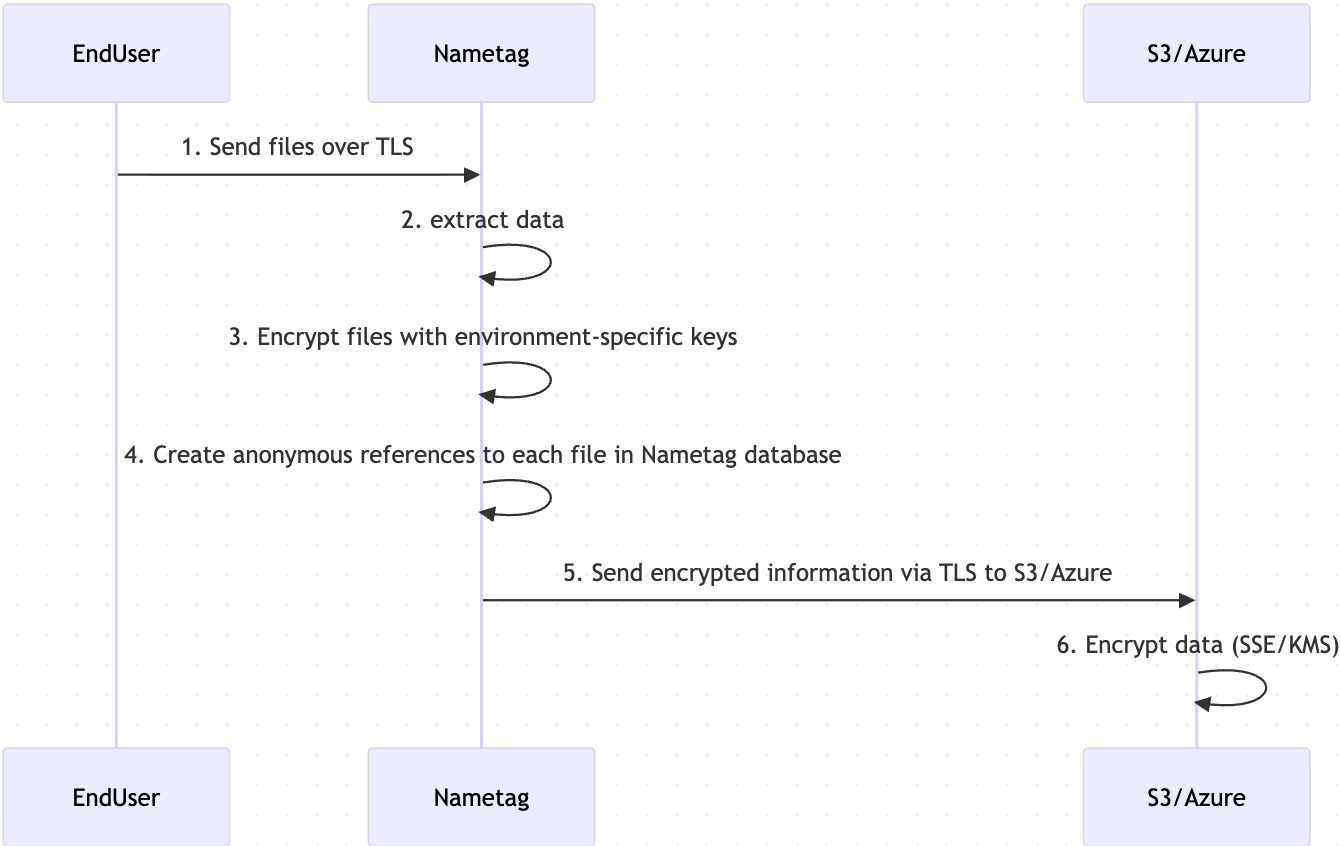
When an end user authorizes data sharing, the data flow executes in reverse. Nametag accesses the encrypted, structured data object containing PII from storage and decrypts only the specific attributes permitted by the end user’s authorization. No additional data is accessed or exposed beyond the approved scope.
When the Nametag Enterprise Data Custody option is enabled, all encrypted artifacts—images and structured data—are written to customer-owned S3 or Azure Blob Storage. The processing pipeline and cryptographic operations remain unchanged; only the storage endpoint differs. Nametag persists only anonymous object references and the relational mappings between those references in its own systems, and does not retain the underlying encrypted content.
Each Nametag environment is protected by a unique environment-specific encryption key. That key is encrypted by a Nametag primary key, which is itself encrypted using a key managed by AWS. This layered key hierarchy enables Nametag to securely perform cryptographic operations required to deliver the service, while ensuring strong isolation between environments and customer data sets.