
Entra ID account recovery
Connect Microsoft Entra ID to Nametag for self-service password and MFA reset.
Connect Microsoft Entra ID to Nametag to let employees securely reset their own passwords and multifactor authentication (MFA) devices after verifying their identity. The steps below cover connecting the directory. For the rest of the setup — self-service permissions, the self-service site, and monitoring — see the self-service account recovery administrator’s guide.
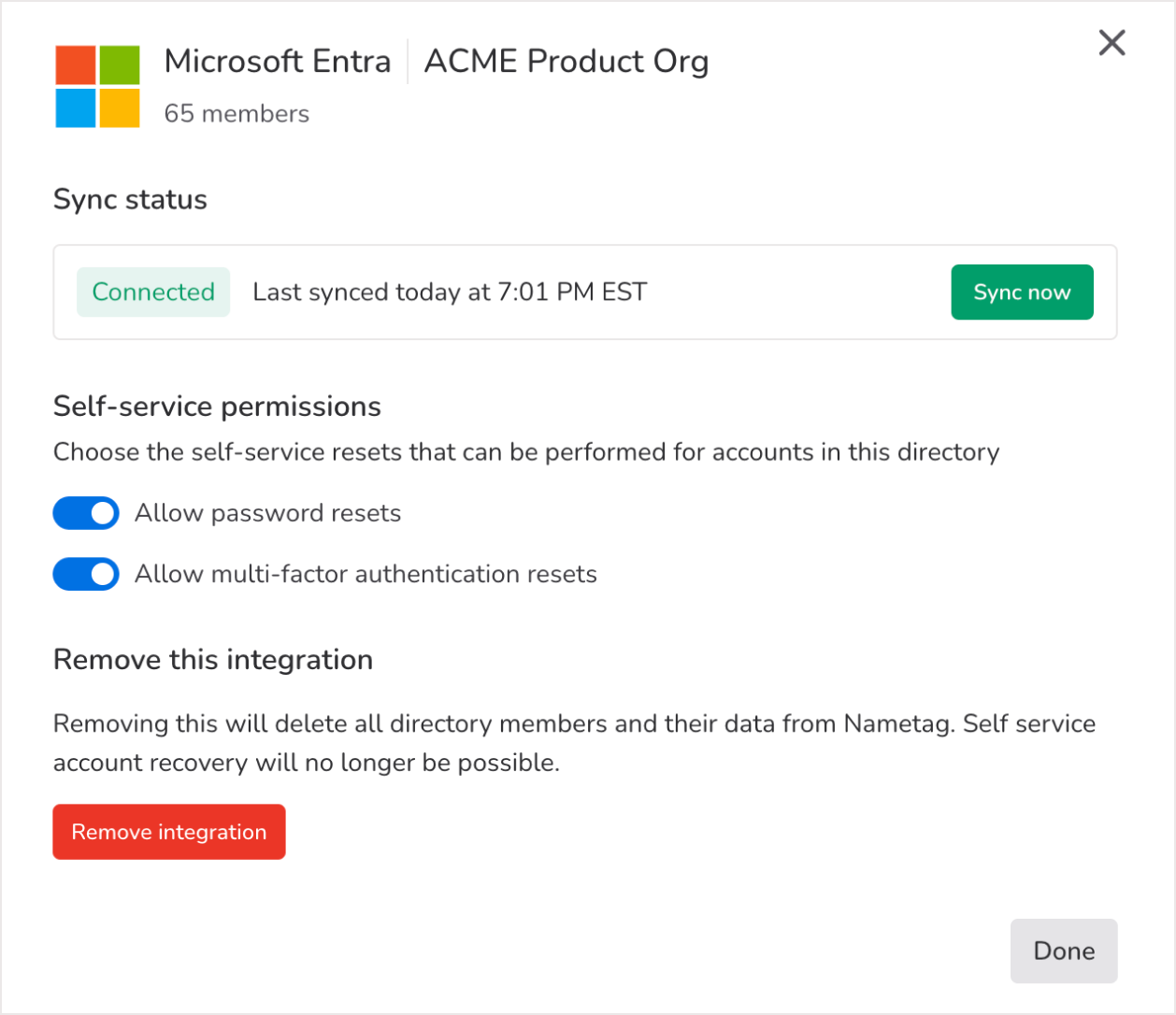
Once your dedicated service account is set up, select Connect to Microsoft Entra ID to connect. You’ll be directed to the Entra sign in page to authenticate with the service account.
After the directory is connected, configure self-service permissions from the directory’s Settings page. Entra ID supports password resets, multifactor authentication (MFA) device resets, and generating a Temporary Access Pass — a time-limited passcode a user can sign in with in place of a password.
Service account requirements for Entra ID
The Nametag integration with Entra ID must be connected through a dedicated service account, rather than an individual administrator’s account. This is due to Entra’s limitations on self-service resets for the administrative account that originally configured the OAuth integration. Additionally, the service account will need to be created and configured by a Microsoft Entra ID Global Administrator, as only a Global Administrator can make permanent role assignments.
The service account must have the following permanent role assignments:
| Role | Purpose |
|---|---|
| Privileged Authentication Administrator | Allows the account to manage and reset authentication methods (such as MFA) for any user. |
| User Administrator | Enables account management of users, including the ability to perform password resets. |
| Privileged Role Administrator | Grants the account the ability to approve and manage administrator consent for the Nametag app, ensuring that the required Microsoft Graph delegated permissions remain authorized. |
Note: For ease of setup, administrators should disable MFA for the service account, which can be done using Conditional Access policies.
Important: Nametag is not compatible with temporary or eligible role assignments managed through Microsoft Privileged Identity Management (PIM). This is because when a PIM-assigned role activation expires, the service account loses its required privileges and the integration stops working. Using the admin consent workflow does not prevent this because the service account’s roles can still expire under PIM, resulting in a loss of access and a disconnection from Nametag.
Delegated permissions requirement for Entra ID
Nametag requires Microsoft Graph API Delegated permissions rather than a traditional service connection (called an Application in Entra ID). This is because the Microsoft Graph Service (which we use to perform administrative actions on your behalf) does not allow Application permissions to perform password resets.
The required Microsoft Graph API Delegated permissions are:
| Permission | Description |
|---|---|
Directory.Read.All |
This allows us to determine which users and groups are in your directory so we can determine which users are eligible for self-service account recovery. |
UserAuthenticationMethod.ReadWrite.All |
This allows us to perform password resets and multifactor authentication device resets on behalf of users. |
Directory.AccessAsUser.All |
To read and perform administrative actions on the directory. |
ProfilePhoto.Read.All (optional) |
To show the user’s profile photo |
Password resets in hybrid Entra ID environments
In hybrid environments where Entra ID is connected to on-prem Active Directory, password resets initiated through Nametag are applied to the cloud identity. For these changes to update the on-prem AD account, your organization must have Password Writeback enabled in Entra Connect (formerly Azure AD Connect). If not enabled, account changes in Nametag will not sync back to the on-prem environment, resulting in end-user access issues.