
Okta account recovery
Connect Okta to Nametag for self-service password reset, MFA reset, and account unlock.
Connect Okta to Nametag to let employees securely reset their own passwords and multifactor authentication (MFA) devices, and unlock their accounts, after verifying their identity. The steps below cover connecting the directory. For the rest of the setup — self-service permissions, the self-service site, and monitoring — see the self-service account recovery administrator’s guide.
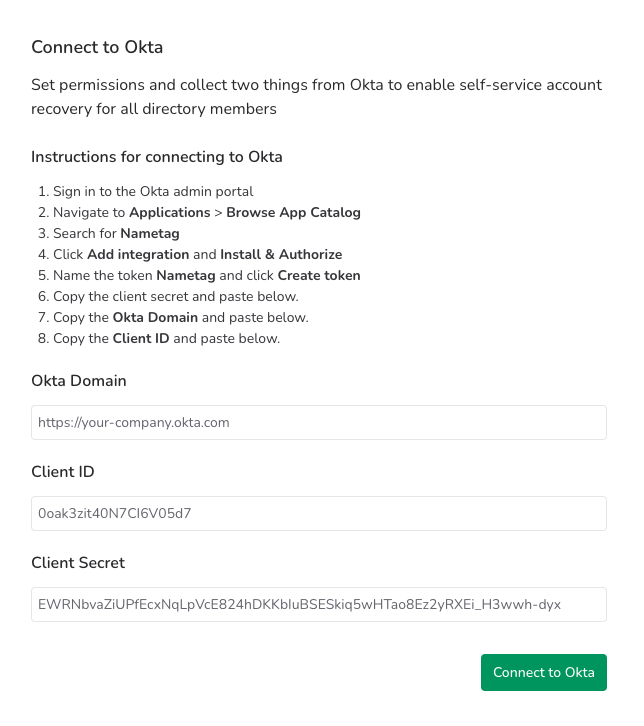
Okta includes settings options for resetting password and multifactor authentication devices and unlocking accounts that are locked out due to too many failed sign in attempts.
Note: If you connect Okta using Okta API Services instead of the App Catalog integration described below, follow Okta API Services.
Gather information from Okta
To connect Okta to Nametag, follow these steps:
- Sign in to the Okta administration portal.
- Go to Applications > Browse App Catalog
- Search for Nametag
- Select Add integration and Install and authorize.
- Copy the Client Secret and note it for the next step.
- Note the Okta Domain and Client ID for the next step.
Configure Nametag
- Sign in to the Nametag console
- Select Integrations in the left-hand navigation
- Select New integration
- Choose Okta from the list of providers
- Enter the Okta Domain, Client ID, and Client Secret you obtained from the Okta administration console.
- Press Connect to Okta