
Nametag Support for Shared Devices
Functionality and implementation of shared device mode in Nametag.
Purpose
Shared device mode is intended for customers operating in a situation where users do not have access to their own mobile devices and need to use a single device. It is assumed that the customer maintains positive control over the device.
When this mode is enabled for a device, the user experience will change slightly:
- At the conclusion of a request, the app will logout and close. When the app reopens, it will be from a fresh slate, as if the user has just installed the app.
- Notifications will be disabled for the device. Because the device is shared, notifications from a previous user would only confuse the current user.
- The device may only open requests in environments where it has been configured to act as a shared device. This is intended as a safety precaution to ensure that the shared device is only being used in pre-authorized environments. A shared device may be configured to work across different environments, so it is not restricted to only a single environment.
Requirements
While shared device mode is configured from the console, the device itself must be running a new enough version of the app to successfully register.
- Android: >= 5.0.101
- iOS: >= 5.101.1
Setup
In order for the shared devices functionality to be enabled, the feature must be enabled for the organization. Reach out to your Nametag representative or help@nametag.co if you wish to enable this functionality.
After the feature is enabled, configuration of shared devices will be possible via the administrative portion of the console. Only users that have administrator or owner role for an environment will be able to view or configure shared devices for that environment.
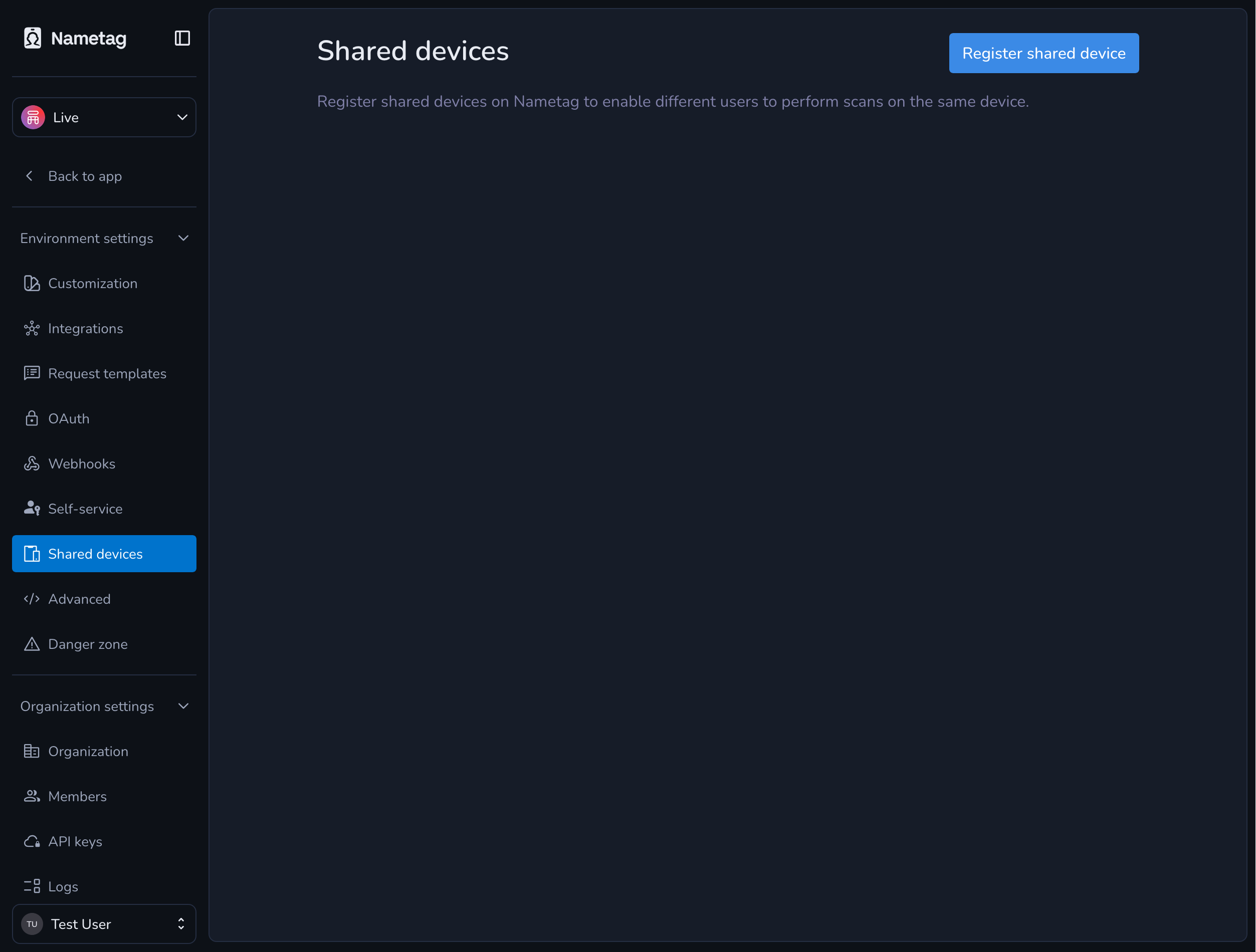
From this page, you can tap “Register shared device” to generate a QR code for the mobile app to scan.
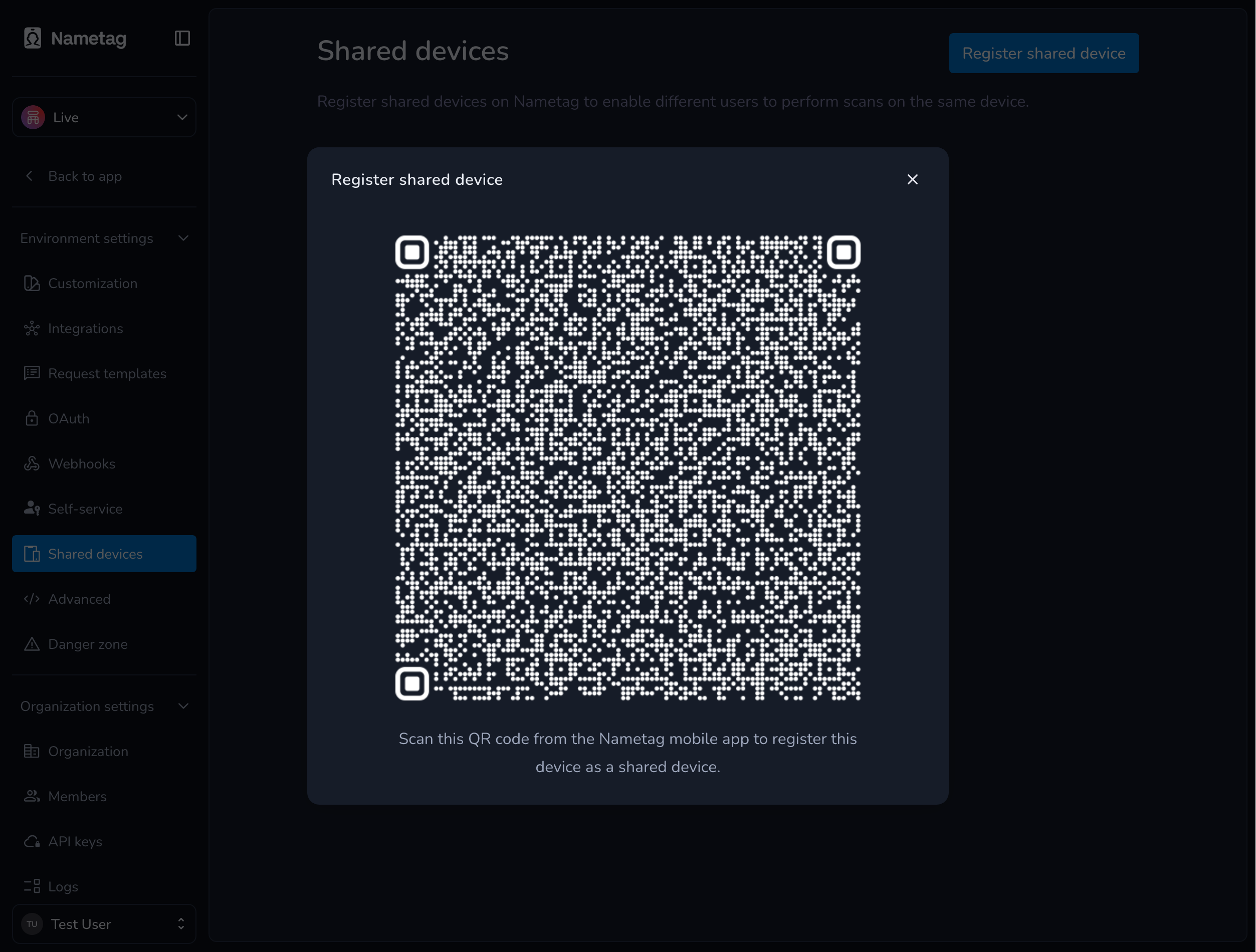
Scanning the QR code from a mobile app will register the device as a shared device for this environment. If the registration fails, the app will display an error message to debug. The usual reasons that registration would fail are:
- Device is already registered to this environment. If this happens, no further configuration is needed for the device.
- Device is not supported for shared device mode. If this happens, a different model of device will need to be used.
- QR code has expired. The code is only good for 10 minutes and the UI will attempt to close the dialog after that time period passes. If this happens, you may re-open the registration dialog to generate a new code.
Once registration is completed successfully, the device will be listed below.
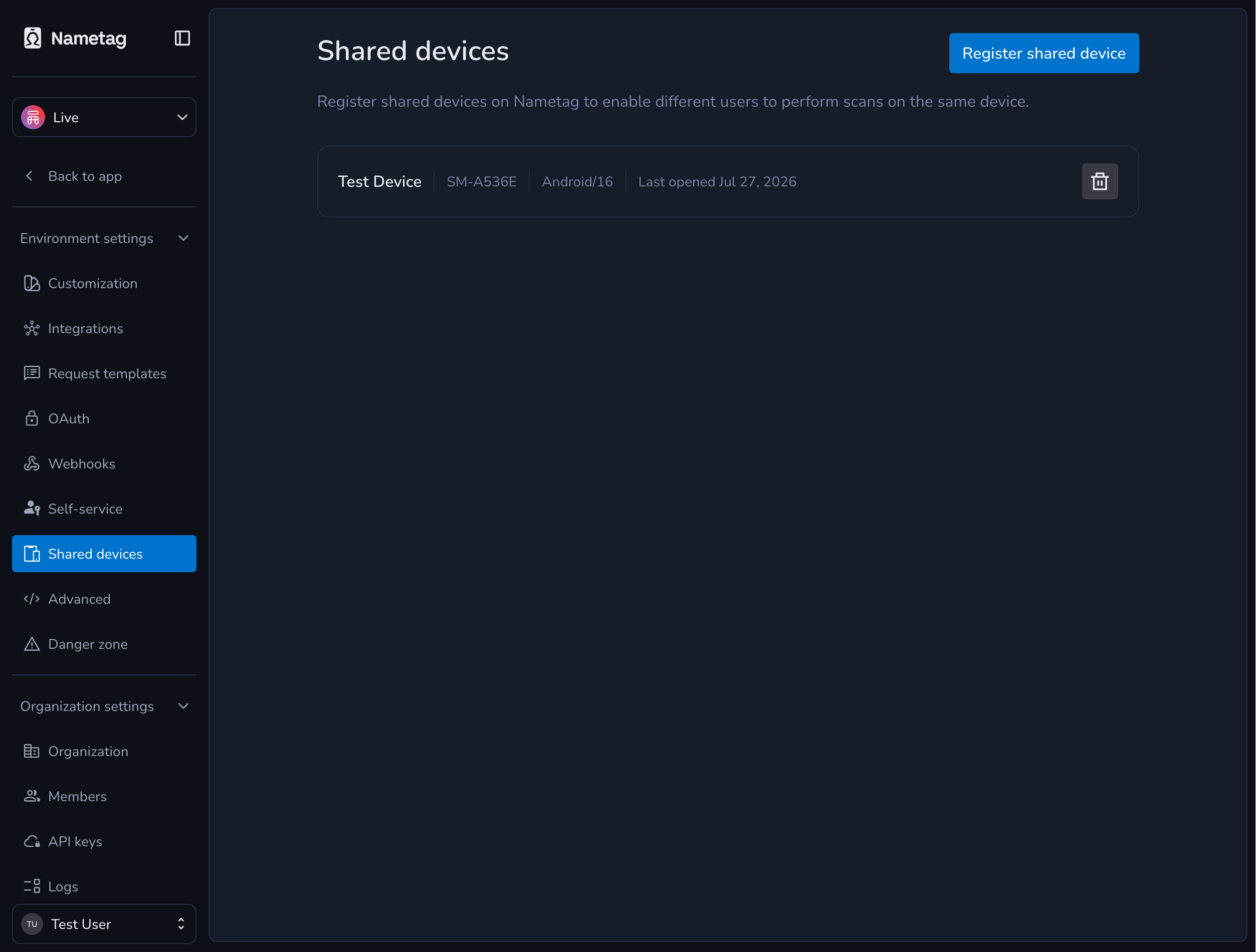
A device may be removed from shared device mode for this environment by tapping the trash icon. If the device is no longer listed as a shared device in any environment, then the next time the app is opened it will automatically be switched out of shared device mode.
Configuring mobile device management
The registration tokens created by the console UI may not be appropriate for usage with MDM platforms, because the tokens expire after 10 minutes. To create longer lived tokens, the API may be used directly. When an MDM configuration is provided via the API, there is no constraint on how long the generated JWT tokens can survive. MDM registration is only supported for Android devices at this time.
Create MDM registration token
Method: POST
URL: https://nametag.co/api/devices/shared/*environment*
Authentication: API key.
Request: A JSON object with the following fields:
| RegisterSharedDeviceRequest struct | |
|---|---|
androidAndroidMDMConfiguration
(optional) | Adds additional configuration to the generated token to indicate that it is intended to be used with an MDM |
expires_atRFC 3339 date-time string (optional) | Time at which the registration token should expire. This configuration is only respected if an MDM |
| AndroidMDMConfiguration struct | |
|---|---|
mdm_certificate_sha256string | SHA256 hash of one of the certificates used to sign the MDM provider. The hash should be hex encoded and |
mdm_package_namestring | Name of the package used as the MDM provider (e.g. |
Parameters:
- environment - The id of the environment to create the shared device for.
Response:
| RegisterSharedDeviceResponse struct | |
|---|---|
qrstring | The QR code to generate for the mobile app to scan. |
registration_tokenstring | Token used to check the status of registration. |
Android MDM configuration
After the token has been created, the MDM manager for Android will need to be configured to push out two properties to Nametag apps:
shared_device_registration_token- This property should be set to the token provided from the API.shared_device_registration_package- This property should be set to the package name of the MDM manager (e.g.com.airwatch.androidagent).
Once these properties are set, any managed Android apps that are running a version at or newer than 5.0.135 will
switch over to shared device mode on their next launch.
Devices may be unregistered from shared device mode by following the same approach, but setting the
shared_device_registration_token value to an empty string.
Legacy concerns
Previously, shared device mode was supported via an option in the settings menu for iPads. This method of entering shared device mode is still supported and will continue to work for the time being, but devices configured this way will not appear in the console. Nametag strongly suggests migrating any devices on the legacy shared device mode into the current approach.
Troubleshooting
- Registration of shared devices is managed solely through the console. The only way for a device to enter or leave shared device mode is via the console. The two exceptions to this are deleting the app and the legacy iPad support.