

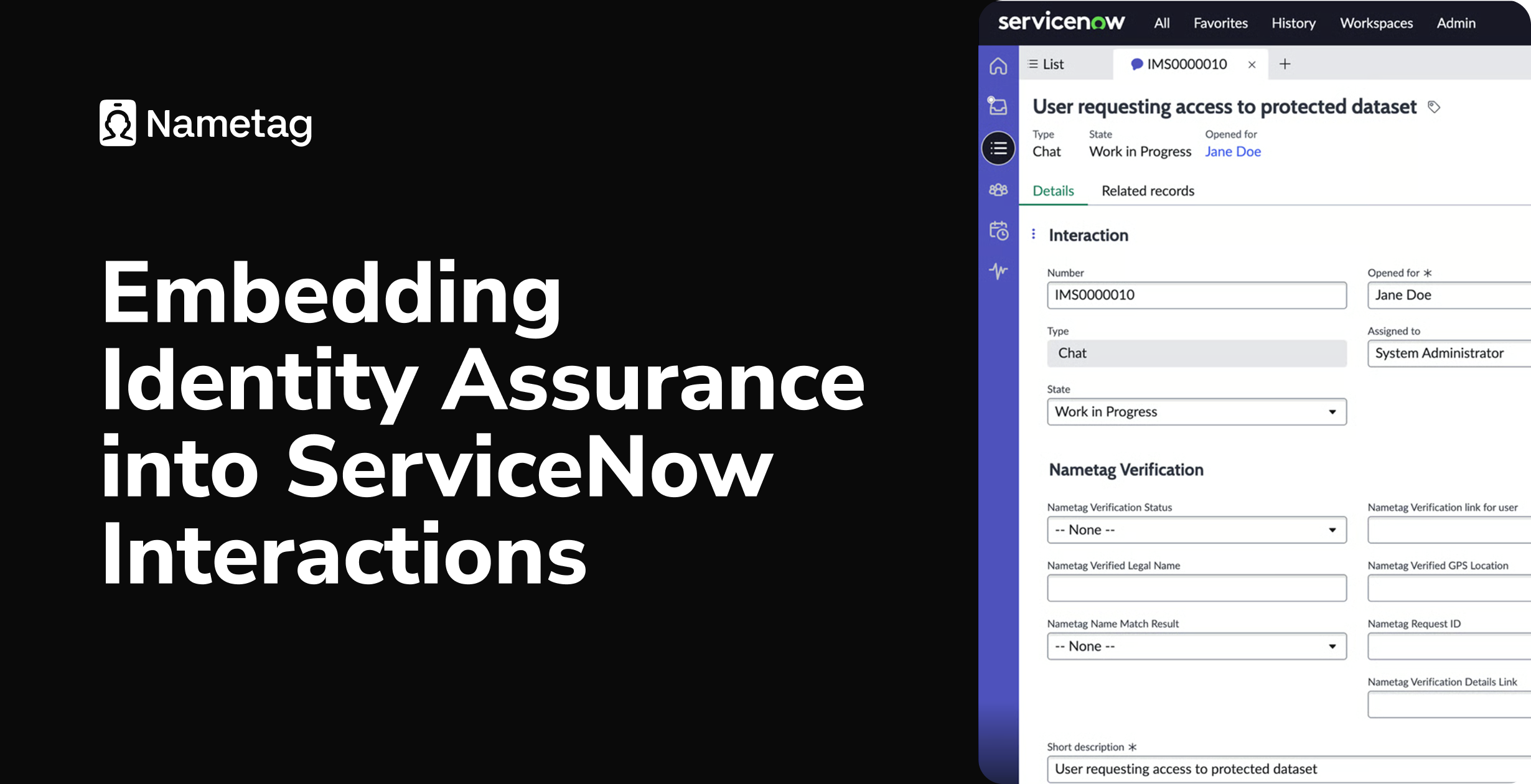

Nametag's certified ServiceNow integration embeds identity assurance directly into the Service Operations Workspace. Helpdesk agents can press a button to get clear, defensible proof of the actual person behind an Incident or Interaction, replacing costly manual procedures with secure identity verification that mitigates social engineering risk.
This article walks through what setup looks like and how the integration works once it's live. For full configuration instructions, see our developer docs.
Setup Overview
Our ServiceNow integration supports two ITSM record types simultaneously:
- Interactions: verify the person contacting your support team.
- Incidents: verify the person behind an open support ticket.
Both record types are handled by a single certified app, installed once from the ServiceNow Store. Setup is quick and easy.
1. Gather credentials. You'll need three values from Nametag: an Environment ID, an API Key, and a Connection URL. These go into ServiceNow during configuration. To collect them, open your Nametag console, go to Configure → Integrations, select Add Integration, and choose ServiceNow. Nametag generates all three values on the same page once the integration is created.
2. Install Nametag. Install the Nametag app from the ServiceNow Store, create a Connection & Credential Alias using your Nametag API Key and Connection URL, and configure the Nametag Integration Settings.
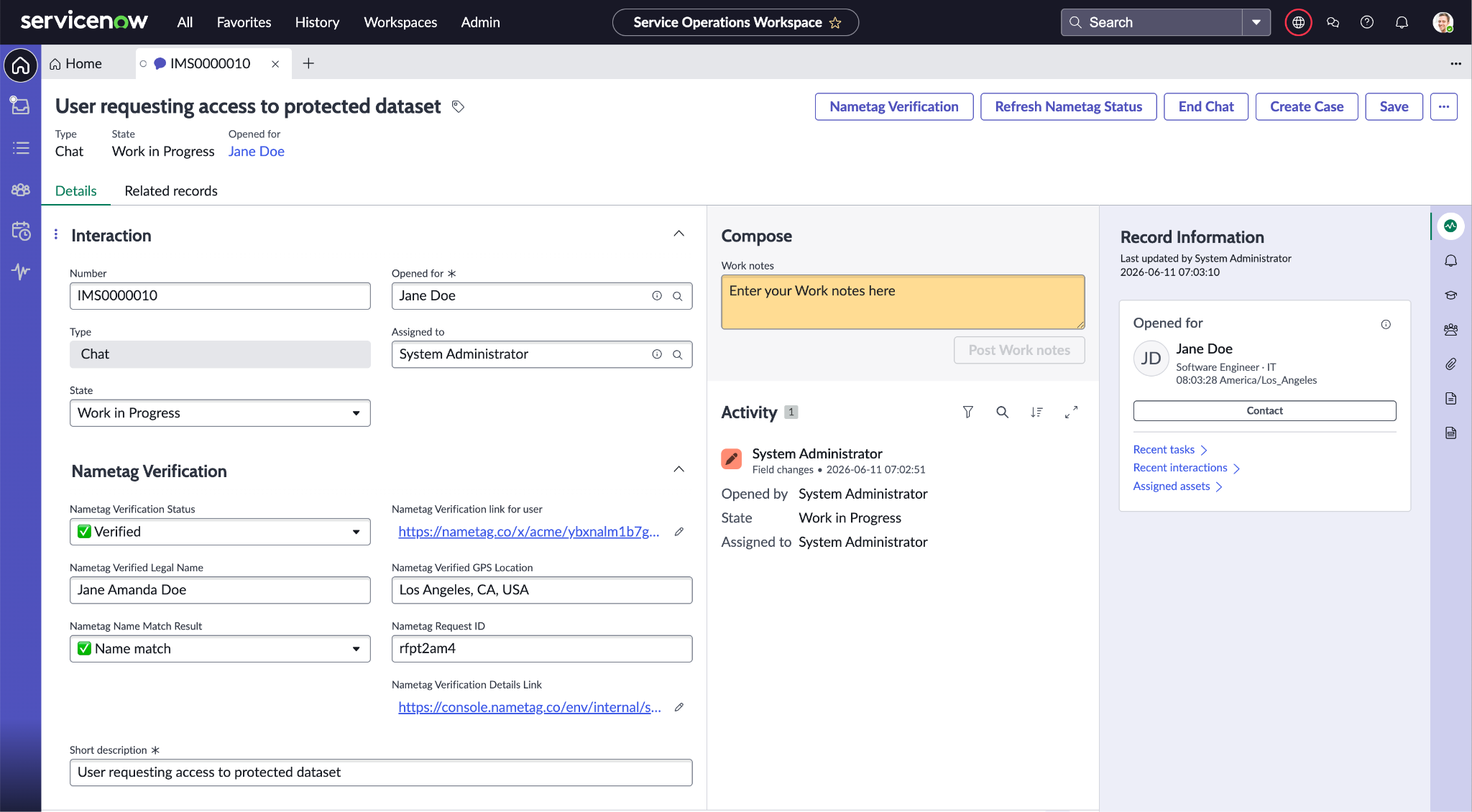
3. Review the Nametag view. The app ships with a preconfigured Nametag Verification view and dedicated Nametag Incidents and Nametag Interactions modules, so every verification field appears without touching your existing forms. If you'd rather customize the layout, use the Form Builder to add the Nametag fields directly to a View: Nametag Verification link for user, Nametag Verification Status, Nametag Verified Legal Name, Nametag Name Match Result, Nametag Verified GPS Location, Nametag Request ID and Nametag Verification Details Link.
For a full step-by-step integration guide, visit our developer docs.
Agent Experience
Once integrated, agents see a Nametag Verification button directly in the Interaction or Incident record.
From the Interaction or Incident, the agent simply clicks Nametag Verification, copies the unique verification link created, and sends it to the person requesting help.
As the end-user progresses through verification, agents can press a button to see their status update. When a verification completes, Nametag writes the following back to the Interaction:
- Verification status (Not started, In progress, Verified, Fraud confirmed, Review in progress, or Could not verify)
- Verified legal name
- Name match result (Match or mismatch) — whether the verified identity matches the ServiceNow requester
- GPS location captured during verification (if configured)
- Request ID (for auditing purposes)
- A link to the full verification details in the Nametag console
Verification results are stored in a dedicated Nametag Verification record. Each verification record is linked to the Incident or Interaction where the verification was initiated, providing a persistent record of the verification outcome.
End-user Experience
For end-users, verifying with Nametag is fast, easy, and confidence-inspiring. They simply tap the link they receive from the agent, then scan a QR code with their mobile phone. Nametag guides them to take a selfie and scan their government-issued photo ID — the whole process takes under 30 seconds on average. People who have verified with Nametag before only need to take a new selfie to re-verify.
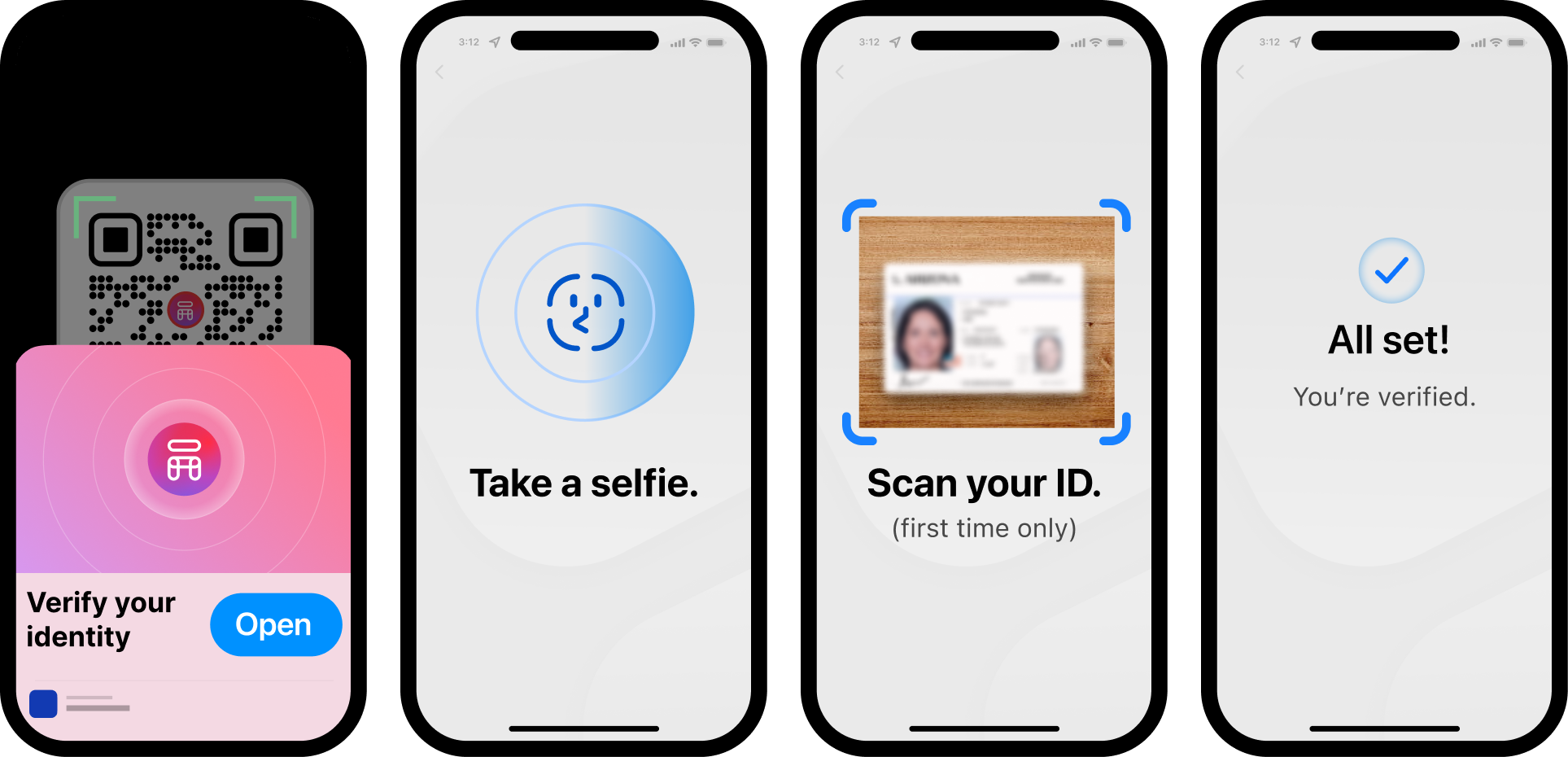
Users give informed consent before sharing any information, and they can request their data be removed at any time. Nametag never stores biometrics. Facial comparison runs in real time, and the biometric data is discarded once the decision is rendered.
Get started
Customers of Nametag and ServiceNow can install our certified app immediately. Find us on the ServiceNow Store and follow our setup guide to get started. If you’re not yet a Nametag customer, or if you want to see the integration in action before you install, contact us today.
